Remote Control Configuration#
Stb-tester supports the following remote-control mechanisms. In most cases the Stb-tester Support team will create & manage this configuration for you.
Infrared control#
Stb-tester needs to know the infrared protocol that your device-under-test
understands. If you are testing a common device like a Roku, Apple TV, or XBox,
we can provide a configuration file that describes the remote control’s
infrared protocol. This configuration file lives in your
test-pack git repository under config/remote-control/,
for example config/remote-control/roku.lircd.conf.
If the device is your own set-top box, we will need to record the infrared protocol of your remote control. Please post us your remote-control unit — contact support@stb-tester.com for details.
Hardware: Plug the infrared transmitter into the 3.5mm jack on the Stb-tester Node, and stick the other end over the device-under-test’s infrared receiver. See Troubleshooting for tips on locating the infrared receiver. Disconnect any other remote-control hardware (such as USB CEC dongle) as they will take priority over the infrared hardware if present.
HDMI CEC control#
Some devices support HDMI CEC commands. This is the technology that TVs use to control a set-top-box using the TV’s own remote control, by sending commands over the HDMI cable to the set-top-box.
Some devices require a configuration setting to enable CEC:
Apple TV: Enabled by default.
Fire TV: Settings > Display & Sounds > HDMI CEC Device Control.
NVidia Shield: Enabled by default.
PS3: System Settings > Control for HDMI.
PS4: Settings > System > Enable HDMI Device Link.
The valid CEC key names are listed here.
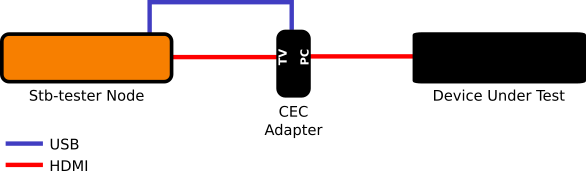
Hardware: You will need our USB CEC adapter. If we didn’t ship one with your Stb-tester Node, contact support@stb-tester.com. Plug it in as per the diagram below — the Stb-tester Node will automatically use the CEC adapter if it is plugged in.
ADB control#
Android devices can be controlled using ADB. We recommend using infrared or HDMI CEC instead of ADB if possible, as these don’t require managing any configuration or state on the device-under-test.
An ADB remote control must be configured in your test-pack git repository in the .stbt.conf file. For example, the following configuration specifies that the remote-control named “nvidia_shield” should use ADB for remote control:
[remote-control nvidia_shield]
type = adb
If the Android device has a USB port, enable “USB debugging” in the Android “Developer options” menu and use a USB cable to connect it to the Stb-tester Node.
If the Android device doesn’t have a USB port, enable “Network debugging” in the Android “Developer options” menu, and specify the Android device’s IP address in the Node-specific configuration file of the appropriate Stb-tester Node, like this:
[device_under_test]
ip_address = 192.168.1.100
stbt.press will convert standard Stb-tester key names (such as “KEY_OK”) to
the corresponding Android keycode (such as “KEYCODE_ENTER”). This mapping is
documented here. You can also specify
Android keycode names directly, or see Key mappings below to specify a
custom mapping.
USB HID control#
Some devices can be controlled via a USB HID (Human Interface Device) such as a keyboard. Stb-tester can emulate a USB keyboard to control the device-under-test using our USB-HID cable. If we didn’t ship one with your Stb-tester Node, contact support@stb-tester.com. The orange “Stb-tester” end plugs into the Stb-tester node’s USB port, and the black “Device under test” end plugs into the device-under-test’s USB port.

This must be configured in your test-pack git repository in the .stbt.conf file. For example, the following configuration specifies that the remote-control named “nvidia_shield” should use the USB HID control:
[remote-control nvidia_shield]
type = usb-hid
You will need to determine a mapping from Stb-tester’s standard key names (like “KEY_BACK”) to the corresponding USB HID page and keycode (like “KEY_KB_ESC”). See Key mappings below, and contact support@stb-tester.com for assistance.
Roku HTTP control#
Most Roku models support infrared remote control. For those that don’t, you can use the Roku’s HTTP API instead. See Device Configuration: Roku for details.
Default remote control#
Configure the default remote control for each Stb-tester Node in the corresponding Node-specific config file. For example:
[test_pack]
default_remote_control = roku
Remote control image#
The remote control image displayed in the Manual control tab of the
Stb-tester Portal can be customised by providing an SVG file in
config/remote-control/ with a filename that matches the name of the remote
control (for example config/remote-control/nvidia_shield.svg).
Usually the Stb-tester Support team will create this for you; if you want to customise it yourself, see the instructions in Custom remote control image.
Key mappings#
For the CEC and USB HID control mechanisms, you may need to specify a mapping from Stb-tester’s standard key names (like “KEY_BACK”) to the corresponding keycodes of the CEC or USB HID protocol. Stb-tester provides a default mapping for the most common keys (KEY_UP, KEY_OK, etc.) but you can override these mappings, or provide additional mappings, in the .stbt.conf configuration file.
For example, to specify mappings for a remote control called “nvidia_shield”,
create a config section called [remote-control nvidia_shield keymap], with
the mappings like this:
[remote-control nvidia_shield keymap]
KEY_BACK = KEY_KB_ESC
KEY_SETTINGS = KEY_KB_COMPOSE
KEY_POWER = KEY_ACPI_POWER
To determine how your device-under-test implements each CEC or USB HID keycode, we can provide a special remote-control configuration that has a button for every keycode in the relevant protocol. By trying each keycode, you can create a keymap like the above for your specific device. Please contact support@stb-tester.com for assistance.